Help for Emberel Notes
Capture a thought, find it again, and follow through. Emberel Notes brings your notes, recordings, tasks and source material together, with an assistant you can use when it helps.
Using Emberel Notes? Open the web app if you have access, or read the access information. Using the original Emberel app? Sign in here or open its separate guide.
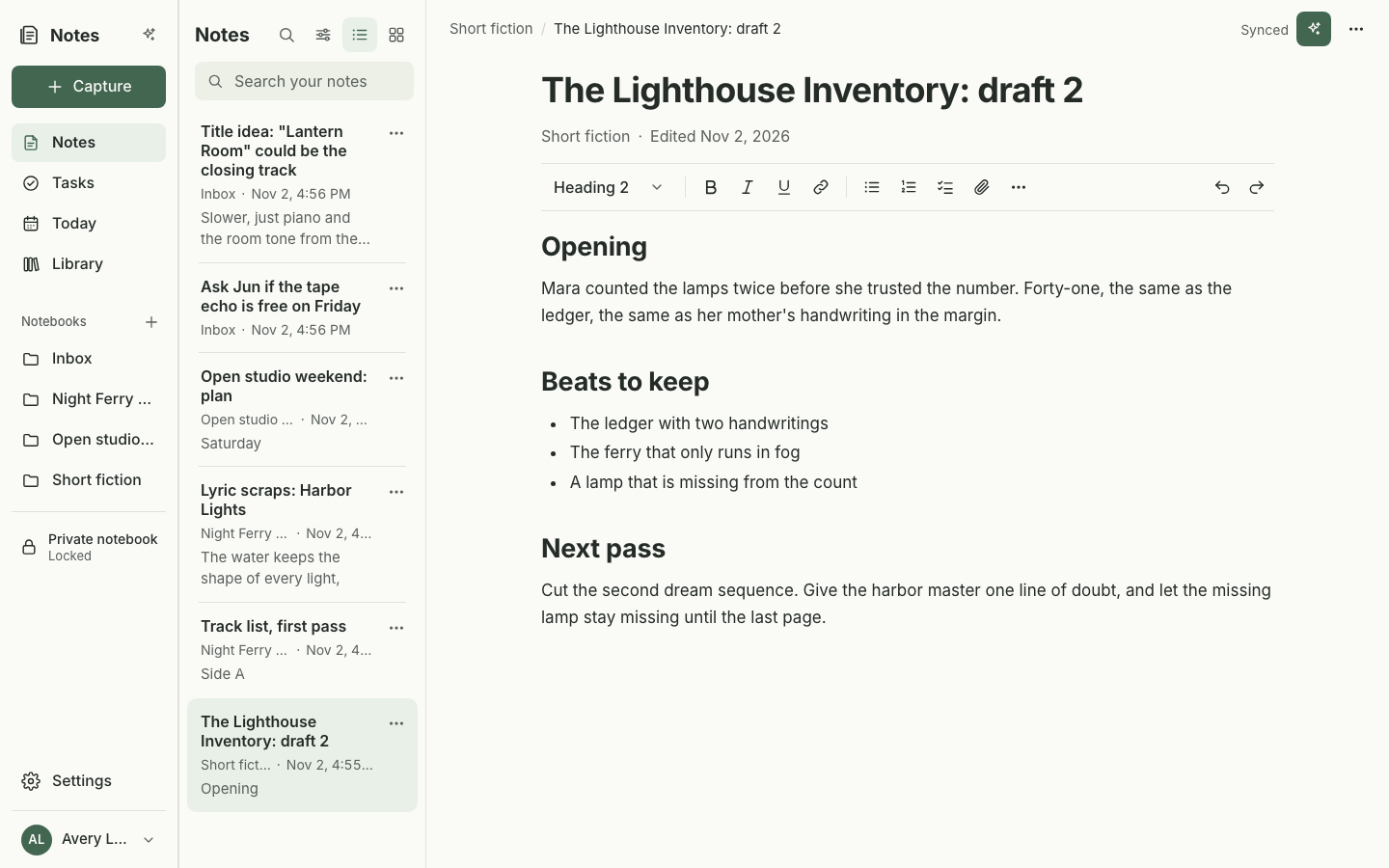
What you can do in V1
Capture and Quick Add
Save a thought, record audio, scan or import. Quick Add can turn a clear typed instruction into a task or reminder. Quick Capture
Notes and notebooks
Use the editor, notebooks, tags, links, search and saved views. Notes, notebooks & Library
Tasks, Today and Calendar
Set start dates, due dates, reminders and repeats. Choose when Today rolls over. Eligible Google connections can show events and add new ones to a calendar you own. Tasks & Today · Calendar
Recordings and follow-ups
Record in the browser, work with a timestamped transcript, review follow-ups and open the source from a task. An editable Summary is a separate step. Recordings & transcripts
An optional assistant
Ask about your library, compare notes, review a meeting or tidy your Inbox. Review suggested edits and tasks before applying them. The assistant
Private notebooks and backups
Set a separate passphrase for a Private notebook. Cloud processing for selected Private content is a separate choice. Privacy and AI · Export and backup
How your notes are protected
Notes and their files are encrypted before they sync. When you allow cloud AI to work on content, the processor can read the content it needs to complete the request. Private notebooks are excluded unless you grant access to specific content. Read Privacy, AI & Private notebooks for the controls.
Availability and limits
These guides describe the web workspace for people with access. Use it in a browser, including on an iPhone. A public native iPhone download, two-way Calendar editing, Google Tasks sync, inbound email and SMS capture are not available in this release. Web & iPhone and Calendar & connections explain the current options.
New here? Getting started takes you to your first capture.